Research papers
Read an unfamiliar language with the original paragraph beside it, and check specialist terms against the source.
Translate PDFs on your own device — several at a time, scans included. Read in your language, compare with the original, and save what you need.
Several at a time · around 40 MB each on this device · opened in this tab, never uploaded
Free to use · No account · Text-based PDFs, as many as you like
· Offline after model download
Everything below happens in this browser tab, on your own hardware, with no copy of your document sent anywhere.
Why a PDF translator is harder to build than it sounds — what a PDF actually stores, and what has to happen before a word can be translated — is in Why PDF translation loses your layout.
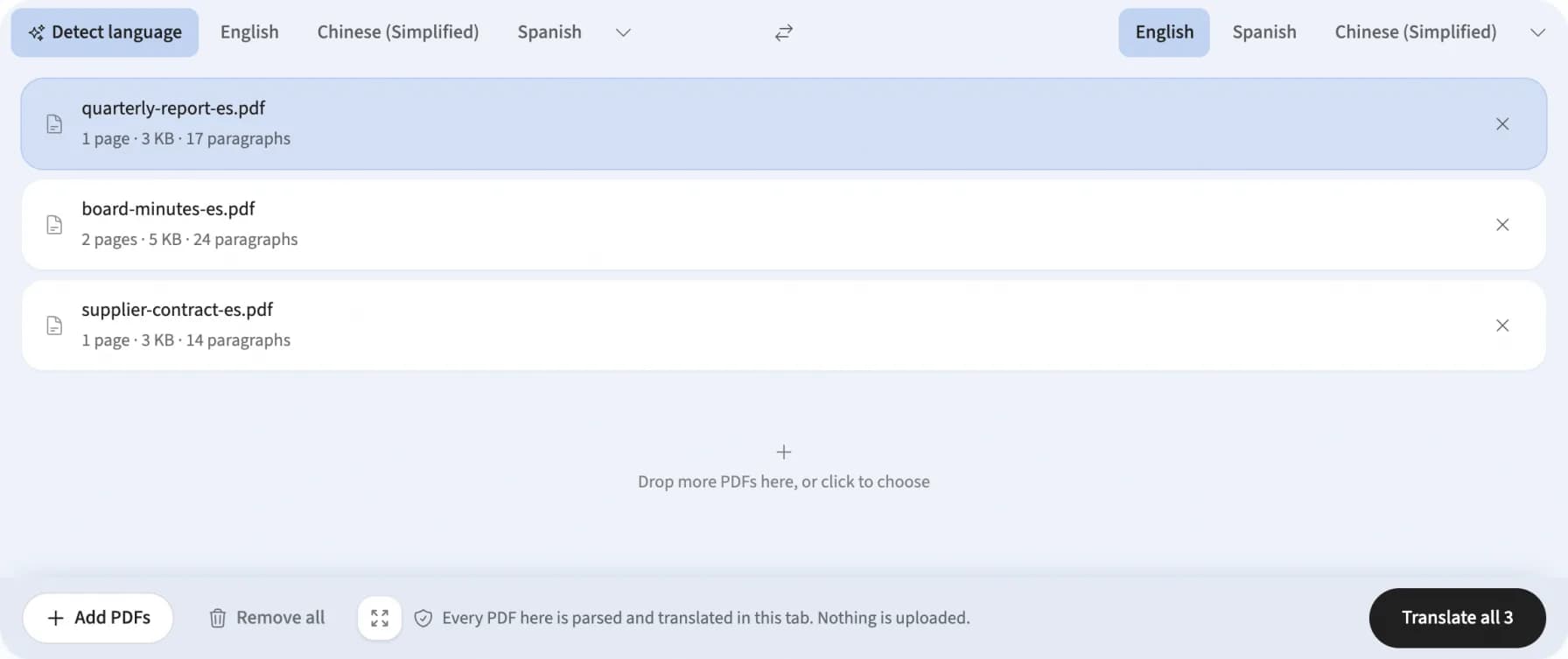
Three steps, all of them on your own machine. Drop in a dozen files if you have them.
Drop one file or a dozen. They queue up in the list and are read one at a time, so a big document never freezes the tab.
Choose source and target, then translate everything in the panel at once. On first use, approve the one-time model download — and text recognition too, if any of the files are scans.
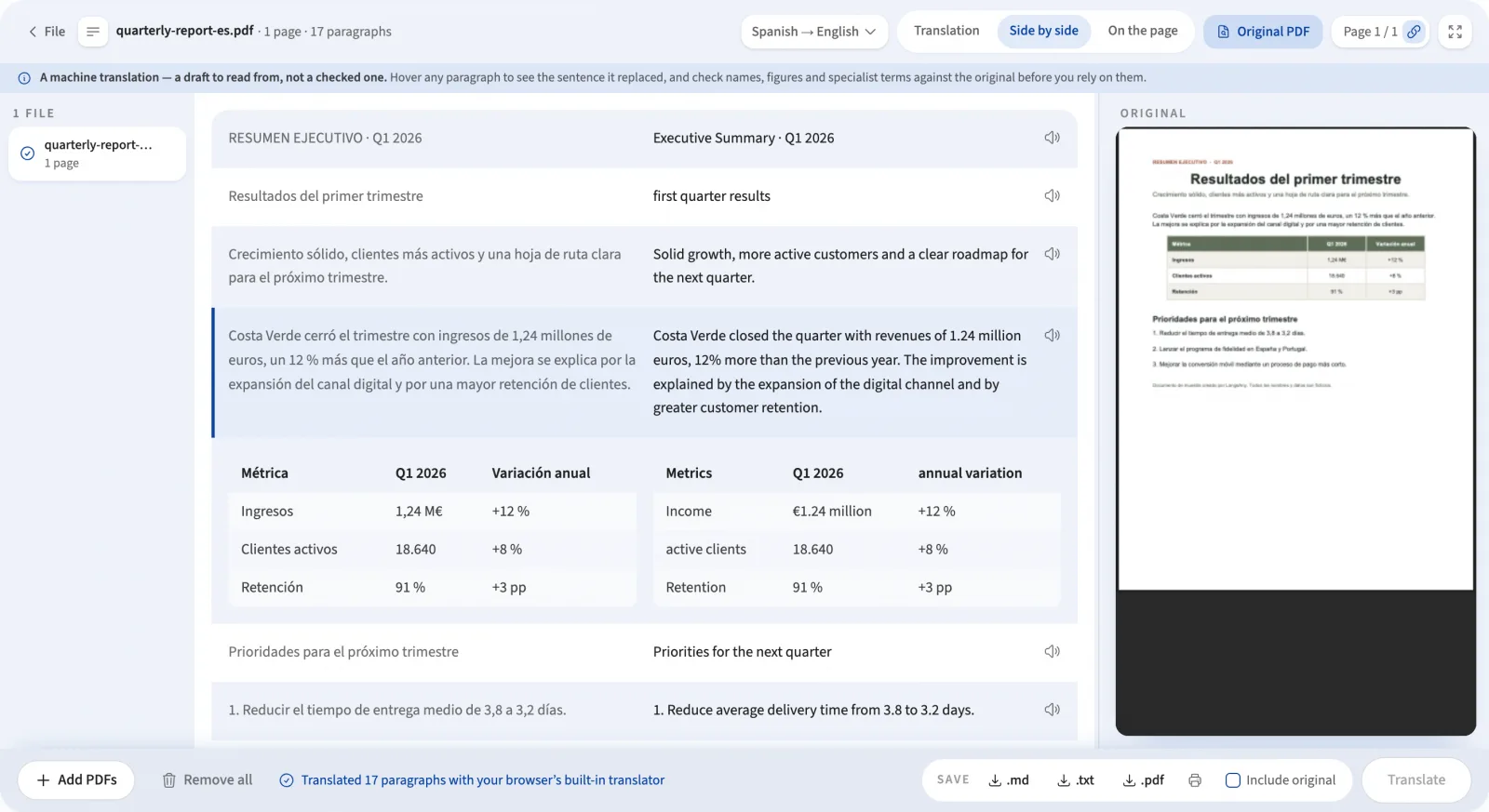
The reader opens on the translated page itself, with the source PDF beside it. Change the target language there at any time and translate again.
The source PDF stays open beside the translation the whole time and follows the page you are on, so the spread in front of you is the same page in both languages. Drag the divider, hide either side, or fill the window.
Where the reader opens. Translated paragraphs sit over the original page, in the place the originals occupied. Hover one to see the sentence it replaced — and this is what the .pdf download saves.
Every paragraph next to its original, lit as a pair under the pointer so your eye never loses the line. The view to read in when names and figures have to be checked rather than trusted.
Clean translated paragraphs grouped by page, with no layout in the way. The fastest read, and the shape the Markdown export takes.
A PDF translator earns its place when the details matter — so keep the source open beside the translation whenever they do.
Read an unfamiliar language with the original paragraph beside it, and check specialist terms against the source.
Understand summaries and quarterly updates, then review the numbers and tables in their original context.
Work through course notes and reference documents bilingually, at your own pace.
Make sense of guides, letters and instructions without copying their text into a separate app.
The browser extracts the text and runs the translation model locally. Your PDFs are not uploaded for translation.
The first run needs an internet connection to download a model. Once cached, that model is reused offline on the same browser and device.
Choose a pair for document tips and a PDF translator with your languages already selected.
A few practical answers before you open your first document.
A PDF translator reads the text stored inside the file and rewrites it in another language. PDFs store positioned glyph runs, not paragraphs, so a usable PDF translator first rebuilds lines, columns and paragraphs from those coordinates, then translates complete sentences. This one does both steps inside your browser, so the file is never uploaded.
Drop one or more files onto this page. The PDF translator opens them with pdf.js inside your browser, pulls out the text layer, and translates it with a model running on your own hardware. You can confirm nothing leaves the tab by watching your browser’s Network panel while it works.
Yes. Add as many as you like: they queue up in the file list, are read one at a time so memory stays under control, then translate in order. You can read a finished file while the rest run, and save them one by one or all together as a ZIP.
Tables on a PDF’s text layer are recognised before the columns are analysed, so a figures table stays a table — in the reader and in the Markdown export. The test is deliberately strict: a run of rows only counts as a table when some of its cells are figures, because two columns of prose look almost identical to a two-column table, and flattening prose into a grid is far harder to read around than missing a grid. An all-text table, or a table inside a scan, is read as paragraphs.
There is no single number, because the limit is your own device’s memory rather than a server quota. The page reads what your browser reports about the machine and suggests a comfortable size — roughly 40 MB on a phone, 200–300 MB on a workstation. Larger files are accepted with a warning; only sizes where the browser would run out of memory are refused.
Yes, and it is what you see first: the reader opens on the page itself, with translated paragraphs drawn where the originals sat and the source PDF open beside them. The .pdf download saves exactly that. Two flatter views are one click away — Side by side pairs every paragraph with its original, and Translation is clean reading text. Longer translations are shrunk to fit their box, so dense layouts are worth a look before sharing.
Three ways, and none of them means opening the file twice. The source PDF sits beside the reader in your browser’s own viewer and follows the page you are on. In the on-page view, hovering a translated paragraph drops it back to the original wording in place, and the Peek under switch lifts them all at once. Side by side lights each paragraph and its source together as you move down the document.
The .pdf button downloads a real PDF file: the original pages with the translation drawn where the originals sat. The pages are images, so the text is not selectable — that is the trade that lets every script render with the fonts you already have. For selectable text, save Markdown (.md) or plain text (.txt) instead, optionally with the source kept alongside.
Yes. A scan has no text layer — its pages are pictures of paper — so it is detected and read with optical character recognition first, on your device like everything else. Pick the language of the pages before you start, since recognition has to know which alphabet to read, and expect the occasional misread word on a low-resolution scan.
Yes, without adding the file again. Open the language chip in the reader, pick a different target, and the button turns into Translate again — the document is re-translated in place and the previous version is replaced.
Accuracy varies by language pair and document. Use the side-by-side view to check names, numbers and specialist terminology against the original. Machine translation is a reading aid; have important legal, medical or official content reviewed by a qualified professional.
Still curious about the machinery? Why PDF translation loses your layout walks through the reconstruction step by step, and why private translation matters explains what you give up by uploading a document elsewhere.
Bring your own documents, or open the sample PDF in the translator above.
Start translating