Free private local image translator
Translate photos, screenshots and picture documents directly in your browser. Complete on-device OCR and neural translation with zero cloud uploads.
Drop photos or screenshots here
Select multiple PNG, JPEG, WebP, GIF or BMP files. Everything is read in your browser with zero cloud uploads.
Free to use · No account · No image upload · Offline after model download
What is an image translator?
An image translator extracts written text embedded in graphics or camera shots and translates it into another language. Conventional translation tools send your personal photographs across the internet to third-party vision servers. In contrast, this on-device software processes every pixel right inside your web browser.
By pairing client-side optical character recognition with local neural machine translation, words are reassembled into coherent paragraphs before translating. Discover the complete algorithmic pipeline in how image translation works, or read why private, no-upload translation matters for compliance and personal safety.
- Local optical character recognition
- Text coordinates and characters are extracted directly on your GPU or CPU without transmitting image data over the network.
- Intelligent paragraph reassembly
- Geometric line clustering connects split sentences and isolates columns, preventing prices and labels from merging into dish names.
- Versatile multi-format exports
- Save translated images as high-resolution PNGs, download structured Markdown (.md), or export batch translations in a single ZIP archive.
- Adaptive typographic fitting
- Translations are dynamically measured and rendered into original box dimensions, preserving aesthetic spacing across different scripts.
How in-browser image translation works
Three streamlined steps from raw image to readable translation.
- 01
Add your images
Drop photos or screenshots, paste from your clipboard with Ctrl+V, or snap a picture with your phone camera. You can queue multiple files at once without browser memory freezing.
- 02
Select languages
Choose the language printed in the picture and your target language. On your first run, approve the one-time model download for private on-device processing.
- 03
Read, compare & export
Inspect translations drawn directly on the picture, review side-by-side with synchronized paragraph highlights, and download as PNG, Markdown, or a ZIP archive.
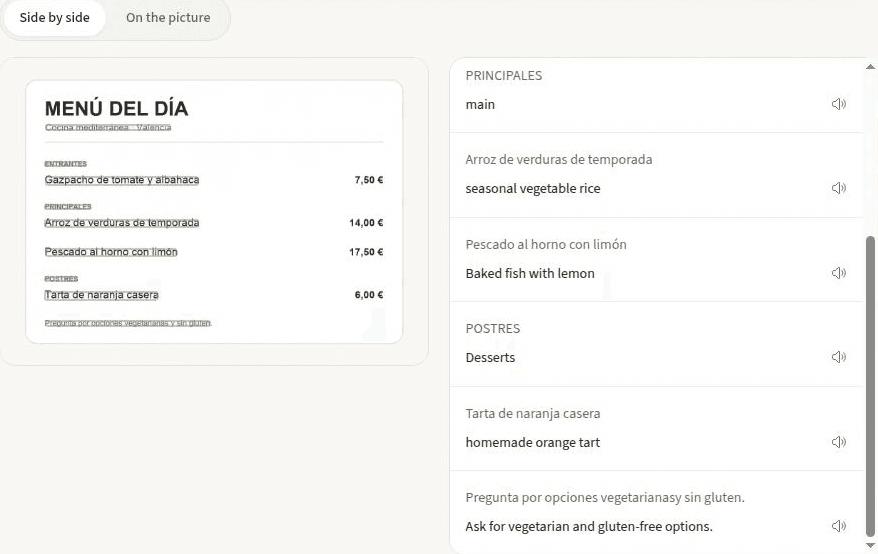
Three ways to inspect an image translation
Every document and screenshot demands a different reading strategy. Switch between viewing perspectives with a single click to verify accuracy against the source.
On the picture
Translated text is rendered directly over the original words on matching background patches. Hover any translated sentence to peek at the original wording underneath without mouse flickering.
Side by side
Review every detected text line alongside its translation. Hovering any line highlights its matching bounding box on the original image, complete with built-in speech playback.
Clean text
Read the extracted translation in clean, structured paragraphs without graphics in the way. Perfect for quick copying or exporting as Markdown and plain text files.
Privacy guarantees and honest limits
Real engineering involves practical considerations. Here is what this system handles best and where it encounters natural limits.
- Optical quality determines OCR precision
- Character recognition reads raw pixels. Severe motion blur, steep perspective angles, harsh glare on glossy menus, or curved packaging surfaces can introduce misread characters. Holding your camera square to text produces the highest recognition accuracy.
- Printed type versus handwritten notes
- The on-device OCR engine is optimized for printed fonts, digital interfaces, and clean signs. Cursive handwriting and stylized calligraphy may produce low-confidence results, which the editor flags transparently.
- Total confidentiality with zero data collection
- Because processing happens within your browser memory sandbox, sensitive invoices, doctor prescriptions, passport photos, and enterprise screenshots never travel over the network.
Supported languages for image translation
Specialized alphabet packages for major language families, each adapted to unique script characteristics and fonts.
Frequently asked questions
Answers to common questions about on-device image translation, privacy, and accuracy.
What is an image translator?
An image translator detects written words inside a picture and translates them into another language. Instead of uploading your image to a remote vision server, this private tool runs optical character recognition and neural machine translation directly inside your browser tab, keeping your pictures entirely secure.
How do I translate images without uploading files?
Drop a photo or screenshot onto this page, choose source and target languages, and click Translate. The browser decodes the image onto an internal canvas, recognises words with an on-device OCR engine, and translates sentences locally. Watch your browser Network tab to verify that zero image bytes leave your machine.
Can I process multiple pictures at once?
Yes. You can drop several photos or screenshots into the queue at once. The tool reads and translates them in serial order to keep memory usage low, letting you review finished pictures while remaining files process, and download them individually or as a complete ZIP package.
Can I paste a screenshot directly from my clipboard?
Yes. Press Ctrl+V (or Cmd+V on macOS) anywhere on the page to paste a screenshot directly into the editor. Because screen captures have crisp, high-contrast pixels without camera angle distortion, they yield near-perfect recognition accuracy.
How does the on-picture translation view work?
The on-picture view samples background colours around each text block and redraws translated sentences directly over the original picture, scaling typography to match the original bounding box. You can hover over any block to peek at the original text underneath or export the translated image as a PNG.
Does it work offline?
Yes. On your first translation, the browser downloads the required OCR alphabet package and translation model. Both are cached in your browser storage, allowing everything to operate without an active internet connection.
What are the limits of on-device recognition?
Accuracy depends heavily on image clarity. Blurry photos, low-contrast text, glare, heavy cursive or handwriting, and curved surfaces like bottles can degrade OCR quality. For Asian scripts like Japanese, Chinese, and Korean, ensure text is cleanly printed and oriented horizontally.
Is it safe for confidential documents or work screenshots?
Yes. Because the software contains no backend upload endpoints, sensitive receipts, medical prescriptions, internal company dashboards, and private chat logs remain strictly on your local device.
Translate text with this free image translator
Drop a photo, paste a screenshot with Ctrl+V, or snap a picture to start translating immediately on your own device.