How Image Translation Works: Mobile Photos, Batch Files & Screenshots
On this page
- Three problems wearing one coat
- Step one: OCR reads shapes, not words
- Step two: lines are not paragraphs
- Step three: putting it back on the picture
- How to take a picture that translates well
- Three dedicated tools for three distinct image workflows
- Technical pipeline: Tesseract WASM, Canvas inpainting, and font fitting
- Where in-browser image translation has limits
- Why all of it can run on your own device
Point a phone at a menu and something remarkable happens: words you cannot read become words you can. It looks like one trick. It is actually three, stacked, and each one can fail on its own. Knowing which of the three broke is the difference between a useless result and a fixable one — so here is what image translation really does between the shutter and the answer.
Three problems wearing one coat
When you translate image content, the machine has to do this:
- Find and read the text. Optical character recognition locates every line in the picture and reports what it says and where it sits, in pixels.
- Rebuild the writing. A recogniser returns lines, not sentences. Those lines have to be regrouped into paragraphs before anything is worth translating.
- Translate it. Only now does a translation model see text — and it never learns that the text came from a photograph.
Almost every complaint about photo translation traces back to step one or step two. The translation model is usually the least of your problems.
Step one: OCR reads shapes, not words
A text recogniser does not know what a word is. It finds regions that look like text, slices them into lines, and runs each line through a neural network trained to turn pixel columns into characters. Everything it knows about your picture, it knows from shapes.
That single fact explains the entire failure surface of image translation. A letter blurred by camera shake is a different shape. A page shot at an angle has letters that shrink and slant across the frame. Glare removes strokes; a curved bottle bends them; text printed over a photograph competes with the photograph. In each case the information the recogniser needs is not in the file, and no processing afterwards puts it back.
It also explains why the model has to be told which language it is looking at. Cyrillic А, В, Е, О, Р and С are pixel-identical to Latin A, B, E, O, P and C. A recogniser expecting English will happily read a Russian sign as a string of Latin letters that spell nothing — and the translation model, given nonsense, returns nonsense. Choosing the source language is not a convenience setting; it is what tells the recogniser which alphabet exists.
Which scripts work, and which do not
Recognition quality is not uniform across languages, and any tool that implies otherwise is selling you something. Latin scripts are the strong case: separated letters, generous word spacing, and by far the most training data. Cyrillic is close behind.
Dense and cursive scripts are markedly weaker. Chinese and Japanese ask the model to distinguish thousands of characters that differ by a stroke or two, and a wrong character is a wrong word with no spelling context to catch it. Arabic joins its letters and changes their shape by position, which is far harder to segment than separated type. Devanagari hangs its letters from a continuous headline and stacks conjuncts beneath it. Thai writes without spaces at all, so there is no word boundary to sanity-check a guess against. These are real limits of a general-purpose recogniser, not tuning problems.
Step two: lines are not paragraphs
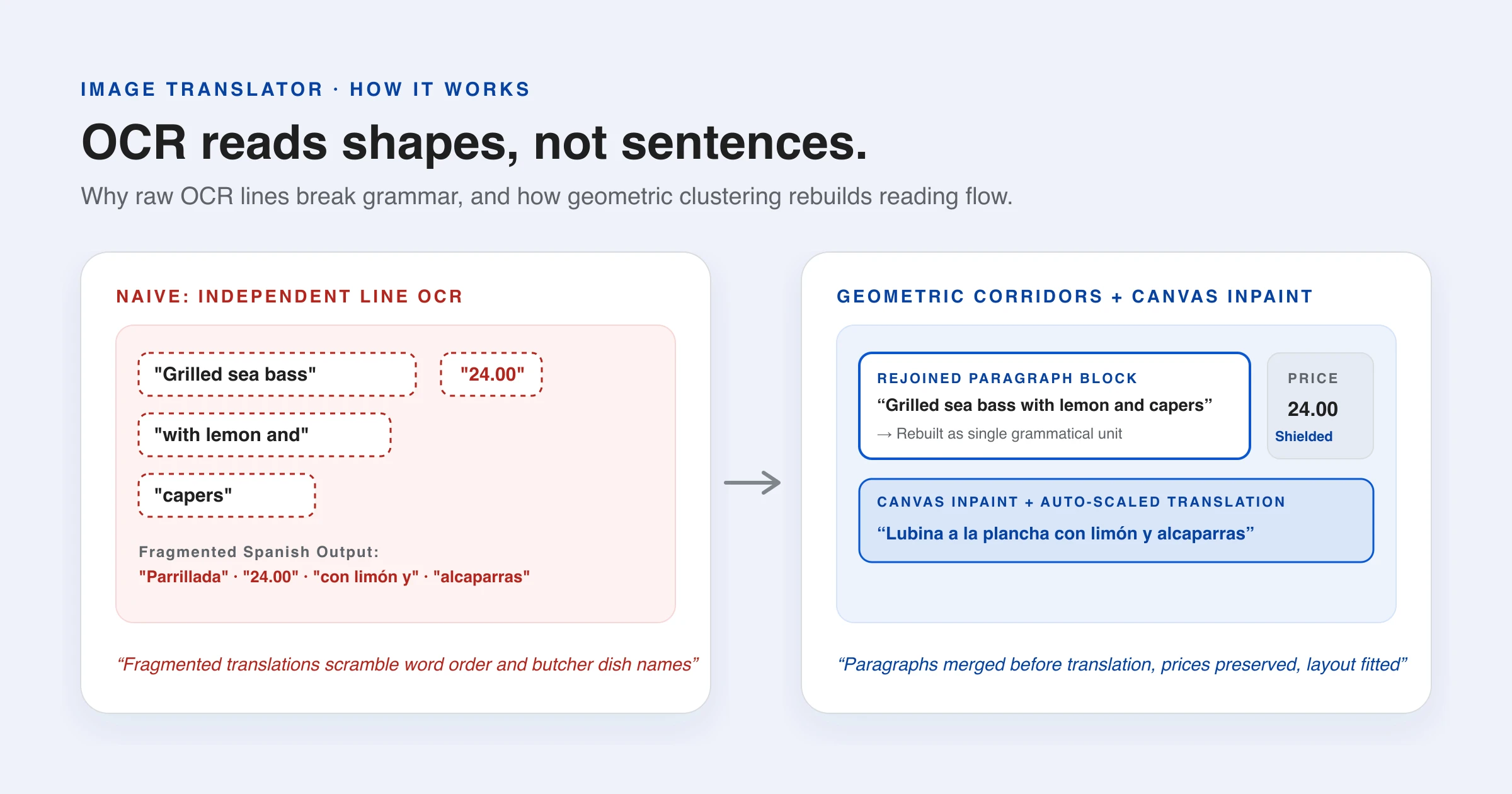
Hand a recogniser a menu and it gives you back something like: “Grilled sea bass”, “24.00”, “with lemon and”,“capers”. Four lines. Translate them one at a time and you get four fragments, two of which are half a sentence — and word order differs between languages, so a translated fragment is often grammatically wrong rather than merely clumsy.
So the lines have to be regrouped first, using nothing but geometry. Whitespace corridors that no text crosses mark out regions: a vertical corridor is a column, which is what keeps a menu's price list from being swept into its dish names. Inside each region, consecutive lines merge into a paragraph when their type size matches, the leading between them is normal, and the left edge does not jump. A bullet, a size change or a wide gap starts something new, and words hyphenated across a line break are rejoined.
This is exactly the same problem a PDF translator solves, for the same reason — a photographed page and a typeset page both arrive as positioned fragments with no structure attached. Getting it right is most of what separates readable photo translation from word salad.
One useful side effect: text with no letters in it — prices, phone numbers, codes — is recognised as such and never sent to the translation model at all. It stays exactly as printed, which is what you want. A translation model asked to translate “24.00” will sometimes oblige, and it will not be an improvement.
Step three: putting it back on the picture
Drawing the translation onto the image is the part that looks like magic and is mostly arithmetic. Each block of original text is covered with a colour sampled from the picture itself — the per-channel median of the pixels inside the box, which lands on the background because glyphs cover a minority of the area — and the translation is written in its place.
Then comes the part everyone underestimates: the translation does not fit. Spanish runs 20–25% longer than English, French 15–20%, German forms compounds that will not break. Writing the new text at the original size overflows the space, so the type is wrapped and shrunk, measured, and shrunk again until it genuinely fits the box the original occupied. Chinese is the pleasant exception, often 40–50% shorter, leaving room to spare.
What this cannot do is restore typography. The original font, weight, colour and effects are gone, replaced by plain type on a sampled patch. On a flat sign it is convincing; over a busy photograph the patch shows. That is why a serious tool offers a side-by-side view as well — when you need to know what was actually read, seeing the recognised text beside its translation matters more than a pretty overlay.
How to take a picture that translates well
Since recognition reads shapes, better shapes beat better software every time. Four habits fix most bad results:
- Fill the frame with the text. What matters is pixels per letter, not megapixels overall. Two lines shot close beat a whole board shot from your seat.
- Shoot square to the page. An angled photo slants and shrinks letters towards the far edge; the recogniser works line by line and will not un-skew it for you.
- Mind the light. Leaning over a menu puts your shadow on it; a flash on laminate puts glare on it. Even, indirect light is worth more than resolution.
- Screenshot rather than photograph a screen. A screenshot is the text as the machine drew it: level, sharp, high-contrast, no lens involved. It is the easiest input OCR ever gets, and results are typically near-exact.
Three dedicated tools for three distinct image workflows
Because real-world image inputs vary so dramatically — from a smartphone camera pointed at a street sign to an ultra-crisp retina screenshot pasted from memory — a single monolithic interface forces awkward compromises. LangsAny breaks image translation into three dedicated, zero-upload browser tools tailored to each specific input method:
- Multi-image queues on the Image Translator: The general-purpose desktop workspace built for batch document translation. You can drop batches of PNG, JPEG, or WebP files, inspect each image with an interactive on-picture text overlay, switch to a side-by-side verification view with synchronized sentence highlighting, and export results as translated PNGs, clean Markdown, or a consolidated ZIP package.
- On-the-go camera capture on Photo Translation: Optimized specifically for mobile viewports and handheld devices. It invokes your phone's camera directly through HTML5
capture="environment", eliminating multiple taps. Designed for travelers needing instant photo translation for restaurant menus, transit tickets, museum placards, and packaging labels offline without paying international mobile data roaming fees. - Instant clipboard pasting on the Screenshot Translator: Built for desktop knowledge workers, developers, and researchers. Simply hit
Ctrl+V(orCmd+Von macOS) anywhere on the page to immediately translate image content from error dialogs, software UI strings, foreign blog diagrams, or video stills. Because screenshots bypass physical camera lenses, they contain crisp pixel grids that achieve near-perfect OCR accuracy.
Technical pipeline: Tesseract WASM, Canvas inpainting, and font fitting
Behind all three tools lies an identical on-device engine composed of three decoupled WebAssembly and browser-native subsystems:
- Canvas pre-processing & Tesseract.js WASM: Before optical character recognition begins, the raw image is rendered to an offscreen HTML5
Canvas. High-DPI downsampling, adaptive grayscale thresholding, and contrast normalization isolate letter contours from textured backgrounds. A multi-threaded Tesseract.js Web Worker executes SIMD-accelerated neural character segmentation powered by Google's open-source Tesseract OCR engine without blocking the browser UI thread. - Geometric line clustering into paragraphs: Rather than feeding isolated text fragments into the translation engine, geometric spatial analysis merges adjacent lines that share identical vertical corridors, matching font heights, and consistent line leading. Prices, item codes, and non-linguistic digits are detected and shielded from unnecessary translation.
- Local neural translation & median-color inpainting: The reconstituted sentences are processed through on-device Opus-MT neural translation models (or Chrome's native Built-in Translator API when available). To render the translation back onto the image, the engine computes the per-channel RGB median of the bounding box to erase original glyphs, then dynamically calculates font sizes to prevent translated text overflow.
Where in-browser image translation has limits
Local processing eliminates servers, but it respects the laws of optics and browser memory. Being clear about what fails saves more time than false promises:
- Extreme angles and perspective distortion: WebAssembly OCR reads row by row. Text shot at an oblique angle shrinks across the frame and fails segmentation. Always shoot perpendicular to the surface.
- Cursive handwriting and calligraphy: Tesseract is trained predominantly on printed typography. Freehand cursive, signatures, or stylized decorative scripts yield significantly lower accuracy than printed signs.
- Text expansion and typography: Romance languages (Spanish, French, Italian) expand by 15% to 25% compared to English, while German compounds refuse to break easily. The engine automatically scales font sizes downward to fit original bounding boxes, but very small original text may become compact.
Why all of it can run on your own device
None of these steps needs a server. Tesseract compiled to WebAssembly does the recognition in a Web Worker; the layout reconstruction is arithmetic; the translation model is a compact neural network downloaded once and cached. The recognition engine is a few megabytes, each language model one to four more, and after that photo translation works with the network switched off.
Which matters, because of what people actually photograph. Prescriptions and medical leaflets. Contracts and letters. Receipts, forms, passports, a screenshot of an internal dashboard with a customer's name in the corner. Every one of those goes through somebody else's servers in a typical image translation tool, and stays in their logs. A picture is a careless thing to upload: it carries everything in frame, not just the part you wanted read.
You can try it on the image translator, paste a screenshot on the screenshot translator, or use your camera from the photo translation page — and watch the Network panel in DevTools while you do. The models download; your picture does not move. That is what image translation should look like: a tool on your device, not a service you feed your photographs to.
References & further reading
- 01Tesseract.js — OCR in the browsertesseract.projectnaptha.com/
- 02Tesseract OCR engine — Googlegithub.com/tesseract-ocr/tesseract
- 03WebAssembly — official sitewebassembly.org/
- 04Opus-MT: open translation models by Helsinki-NLPgithub.com/Helsinki-NLP/Opus-MT
Translate images privately
OCR, inpainting, and translation for photos, screenshots, and graphics right in your browser.
Open the image translator